

Activate SCI TV on your Smart TV

Follow these simple steps and enjoy all content in big screen with family & friends
STEP 1
Select your Smart TV brand and follow the steps to download the SCI TV Platform
SAMSUNG TV
- In the bottom menu head to the left and select Apps.
- Once in the Apps page, head to the search icon on the top right corner of the screen.
- Type Sci Tv Networks. The app should appear while typing.
- Select the SCI Tv Networks app. In the app page click install.
- Once the installation is complete click on open.
LG TV
- In the bottom menu head to the right and select Apps.
- Once in the Apps page, head to the search icon on the top right corner of the screen.
- Type Sci Tv Networks and press Enter.
- Select the SCI Tv Networks app. In the app page click install.
- Once the installation is complete click on open.
ANDROID TV
- In the top menu select Apps.
- In the Apps Store page select Play Store.
- In the Play Store page select Search in the top menu.
- Type Sci Tv Networks. The app should appear while typing.
- Click on Install. Once the installation is complete click on open.
APPLE TV
- In the menu head to App Store.
- Once in the App Store page, head to Search in the top menu.
- Type Sci Tv Networks. The app should appear while typing.
- Select the SCI Tv Networks app.
- In the app page click the download button.
- Once the installation is complete click on open.
FIRE TV
- In the menu head to the right and select App Store.
- In the App Store page select Search.
- Type Sci Tv Networks.
- Click on the searched text, the app should appear.
- Click on the SCI Tv Networks app.
- In the app page click download.
- Once the installation is complete the app will open automatically.
ROKU
- In the menu head to down and select Search.
- Type Sci Tv Networks. The app should appear while typing.
- Select the SCI Tv Networks app. In the app page click Add App.
- Once the installation is complete click on open.
CHROMECAST
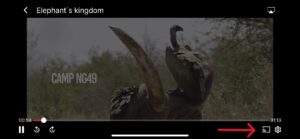
- With your Chromecast plugged into your tv
- Open the SCI TV Networks app
- Click on play the desired content
- On the bottom right of the screen click on the Chromecast icon button
STEP 2
Open the SCI TV App in your smartphone and search for “Tv loging” Make sure you are logged in with your user credentials.
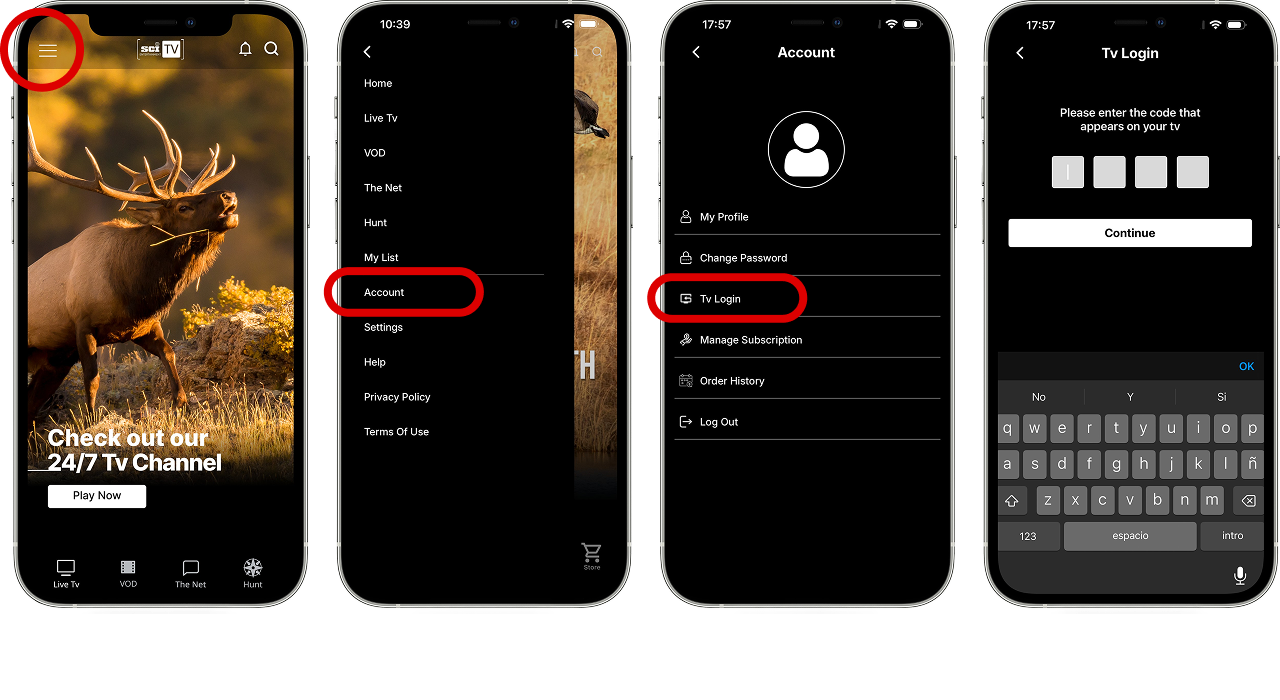
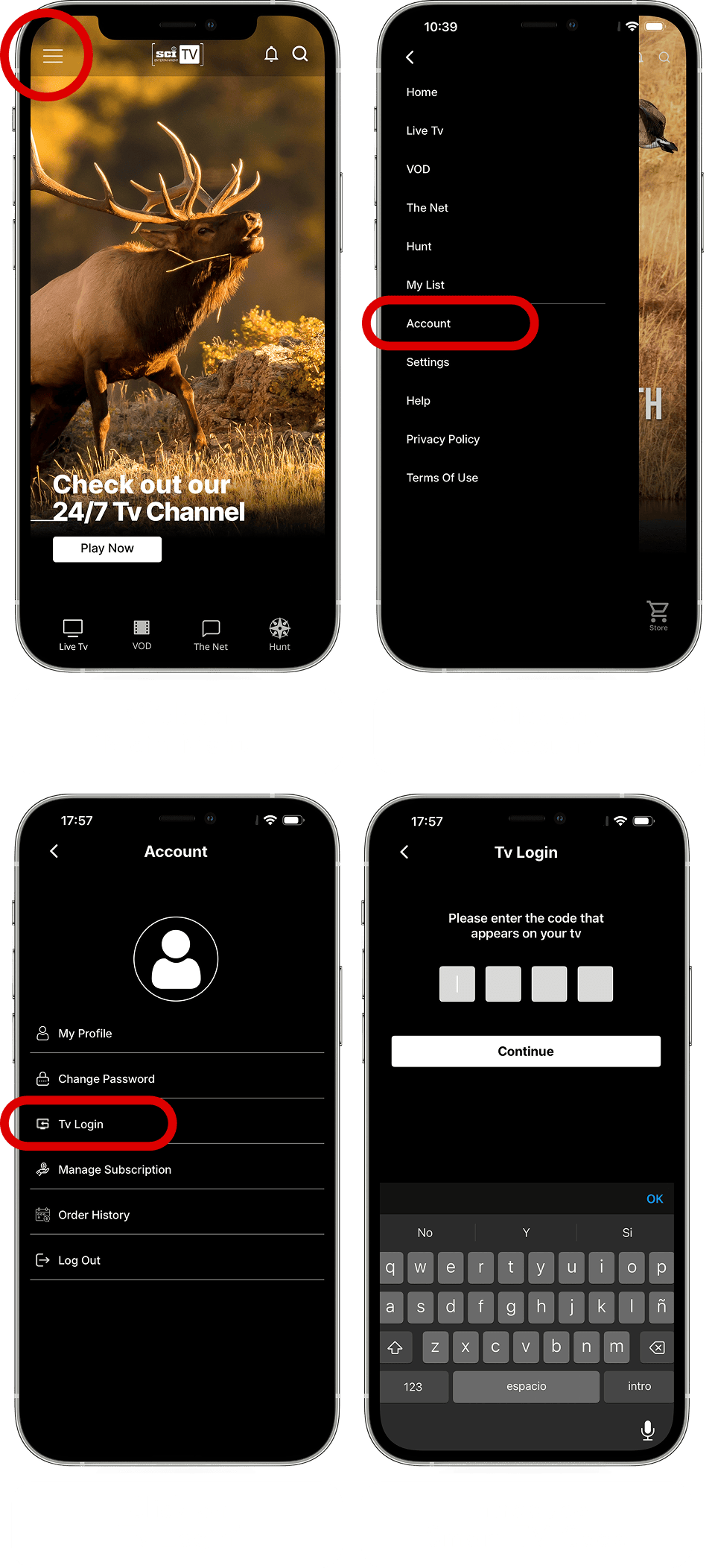
STEP 3
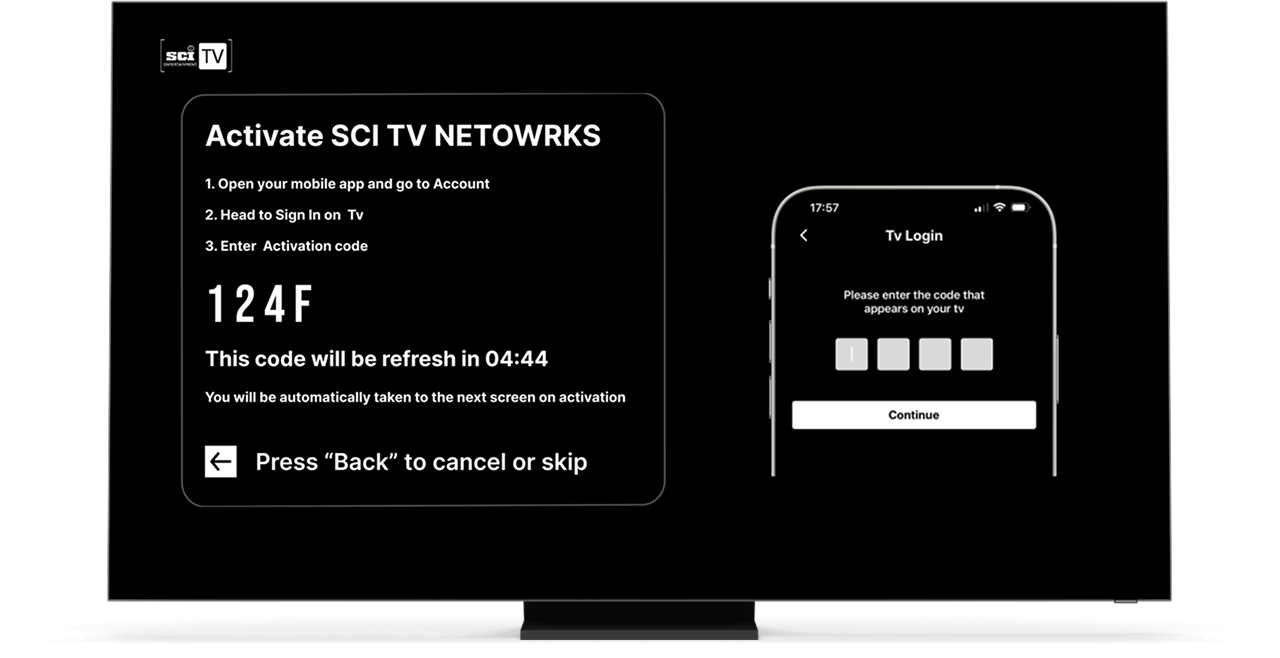
Open the SCI TV App in your Smart TV, introduce in your smartphone the 4 letters of the TV screen and click continue
If you have any problem with your devices or in the process to install it, contact with: